https://instagram.com/p/94MKcEwP4O/

Showing posts with label iPhone. Show all posts
Showing posts with label iPhone. Show all posts
Monday, November 09, 2015
Battery Meters in Notification Center for Watch & Beats. Love This in iOS 9.
Battery Meters in Notification Center for Watch & Beats. Love This in iOS 9.

https://instagram.com/p/94MKcEwP4O/
https://instagram.com/p/94MKcEwP4O/

Monday, September 28, 2015
Wednesday, September 09, 2015
Thursday, July 23, 2015
Saturday, February 28, 2015
Tuesday, September 23, 2014
Friday, September 19, 2014
Tuesday, September 09, 2014
Friday, June 06, 2014
Sunday, February 23, 2014
SXSW Survival Guide & Packing List 2014 - How One Geek Planned For It
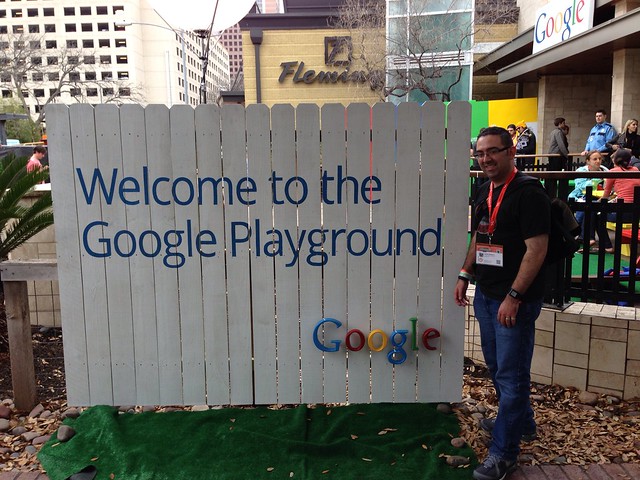
SXSW 2014 will be my 4th year in Austin for the conference since 2010. The first two years were badgeless, just checking out the unofficial events around town and networking at the bars & restaurants near the Austin Convention Center. In 2012, I took the year off since my identical twin daughters were born on March 12, 2012. And last year, I officially attended with a badge, representing the ChaiOne team. Seeing each Elon Musk, Al Gore, Nate Silver, Rachel Maddow, & Dennis Crowley speak within 4 days was pretty remarkable.
Over the past 5 years I’ve learned that while serendipity is the key to an amazing SXSW, you don’t facilitate that without a fair amount of planning in the month before the conference. It helps to RSVP to parties, even if you know you can't attend all of them. It helps to pick several interesting talks at each time slot on the conference schedule so you have options when some are inevitably full or too far away. It helps to poll your network on Twitter & LinkedIn to gauge who will be in town, so you can note who to invite along to interesting events or meet for a drink. It also really helps to pack or buy the right gear to keep your gadgets and body charged for 5 days of abuse.
There are numerous well-written resources online about what to pack and how to maximize your experience while at SXSW. I suggest Googling “SXSW Survival Guide” or “SXSW Packing List” to get broad exposure to veterans’ opinions if you don’t know where to begin. Two I’ve found particularly valuable are Tantek Çelik’s list from 2011 & Aubrey Sabala’s guide from last year.
My list below isn’t intended to be a comprehensive checklist of what you should bring. If nothing else, I hope it may spark some ideas of things you might consider bringing if you’ll be in attendance, serve as a gauge of what an early adopter is using at a tech conference, or represent a humorous reminder of how quaint technology was when you read this 5 years from now.
I’ve broken the list into six sections. The first two are focused on the gadgets and the accessories that will power those gadgets. The next two are about powering the badge-wearing biomachine, and hacking that biomachine to endure 18 hour days of walking, learning, networking, and…drinking…heavily. The fifth is a quick rundown of the other non-battery-powered items I advocate keeping in your go bag each day. The last section is all about the mobile apps that will be getting their own respective workouts during the event.
Gadgets
- iPhone 5S: This will inevitably be my most-used device. Tablets, smart watches, glasses, & other wearable tech is important, but nothing matches the criticality of your phone at SXSW.
- iPad: I'm using a 3rd generation (the first with a Retina display) model, and intend to use this the most during conference talks for note taking, tweeting, and ad hoc Googling.
- Google Glass: I was able to get my prescription frames & lenses in just in time for SXSW this year, so I'll really be putting Glass through its paces for the first time at the event.
- Nike Fuelband: My second highest Nike Fuelpoints day of 2013 was the Saturday of SXSW. I'm hoping to top that while walking around downtown this year.
- Withings Pulse: I have a hunch that I'll get my target of 10,000 steps per day all 5 days of the event, but nowhere near the recommended 8 hours of sleep per night that this gadget will be monitoring.
- Pebble: Push Notifications from my iPhone on my wrist. I forgot my Pebble charger at SXSW last year, and missed its functionality dearly.
- Wii U Fit Meter: With all the hills in Austin, I'm hoping I make some measurable progress in Wii Fit U on ascending the equivalent height of Mt. Everest.
- Nintendo 3DS XL: While I don't think I'll get much playing time while in Austin, by tossing this in my bag, I'll easily be able to fill up my Nintendo ID with Play Coins from all the walking. Although, I'm always up for a game of Mario Kart!
Gadget Power
- Mophie Juice Pack Helium: My first line of defense in an electricity hungry conference, this extended battery case served me well last year and will be flipped on once my phone's internal battery hits 20%...which will likely be before lunch each day.
- Anker Astro 6,000 mAh Portable Charger: My second line of defense, this battery should be enough to get me 2 or 3 more full charges on the iPhone each day. Depending on the day, this will last me until I get back to my rental house each evening (read: 2:00-3:00AM).
- Anker Astro3 12,000 mAh Portable Charger: Here's the catch-all battery for everything else I'll be wearing or using each day. Likely gadgets to drink from this oasis include the iPad, Google Glass, and possibly the Pebble. Those new watch faces that are possible in the 2.0 Pebble firmware are really power hungry. If I blow through the charges in the first two items on the list, this guy will also be available for the iPhone.
- Anker 40W 5V / 8A 5-Port Travel USB Charger: This won't go out and about with me in my bag, but instead will serve as the main charging hub once I'm back in my room each evening.
- Mediabridge Portable Surge Protector with USB Chargers: One in my backpack each day, and then one back in the room.
- Assorted Lightning/30-Pin/Micro USB Cables: As you can infer from the list of gadgets and external batteries above, I'm going to need more than just a few of these to ensure I'm starting each morning 100% juiced up.
Body Fuel
First Thing In The Morning
- Bottled Water
- Gatorade
- Coconut Water
- Red Bull
Carried In The Bag To Consume Throughout The Day
- Powerbar
- Gatorade Chews
- Candy Bar
- Beef Jerky
Every Other Opportunity
- BBQ
- Tacos
Body Hacks
Did I mention every day pushes about 18 hours, for many of those hours you're drinking with new & old friends alike, and you'll shake hands countless times with folks from all over the planet who may or may not be in tip top health? Yeah, it's more than just a tad taxing on your body.
The first two years I attended SXSW, I thought "Hey, I went to undergrad in New Orleans, this will be a cake walk!" and came home to Houston a shell of a man both times. Last year, I proclaimed "I will beat the system...with science!" and stocked up on tons of fluids to slurp down each day, along with an assortment of supplements to battle the inevitable dehydration, lack of sleep, and the always looming SXSW Flu.
The plan worked wonders. It's by no means a silver bullet to avoid a hangover completely or make it to the first panel every morning, but it definitely levels the playing field. It also helps ensure you won't need a full week to recover from SXSW once you make it back home (which is more common than you'd believe).
- Hammer Nutrition Endurolytes: Usually employed by marathoners to ensure they keep enough electrolytes in their body while racing. SXSW is a marathon.
- Berroca: Magic fizzy pills from Europe to bring you back to life each morning with a surge of Vitamins B & C.
- Advil Liqui Gels: Short of taking prescription pain relievers for your inevitable headache, this is the next best thing. Prudent to wait until the next morning to take these, though, as mixing with alcohol at the end of the night can be dangerous.
- Airborne Powder: One packet mixed with a glass of water in the morning, one before bed.
- Emergen-C Powder: One packet mixed with a glass of water at lunch.
- Prolab Caffeine Tablets: Easier on the bladder than coffee, but with an equivalent jolt of caffeine as two cups of joe. You do want to be alert and engaged during the panels, right?
- Advocare Slam: Kind of like a 5 Hour Energy, but I've found it to make me less jittery. I down one of these after dinner before the evening parties.
- Visine: You won't get enough sleep and your eyes will be dry as a result. This helps.
- Burt's Bees Lip Balm: My lips never get chapped at any other time of year, but with the combination of recycled air inside the convention center, wind in the Austin streets, and sustained abuse on the body, they get chapped at SXSW. This lip balm works wonders to bring them back to normal.
- Altoid Smalls: While I'm sure the combination of breakfast tacos, smoked brisket, and Jack Daniels makes for a delightful daily menu, it doesn't make your breath smell like a fresh autumn breeze.
Misc
- SXSW Badge
- Evernote Moleskine Notebook
- Pen
- Moo Business Cards
- Warby Parker Sunglasses
- Rain Poncho
- Kleenex
- Wet Ones
- Microfiber Cloth
- Square Reader
- Index Cards
Apps
Each year I create a new folder on my iPhone of the apps I expect to primarily use each day while in Austin. Here's this year's batch:
SXSW GO: No need to lug around the printed book of all events when the mobile app can be updated & referenced on the fly.
Secret: I'm hoping for a juicy rumor involving Johnny Football & Miley Cyrus in the RVIP Lounge party bus to show up in my feed. Or just some ridiculousness from the Silicon Valley set.
Find My Friends: Especially if you're traveling to Austin with a team, this is a frictionless way to see where your teammates are around downtown without having to message each one of them.
Foursquare: While I use it daily to keep a digital passport of my life, it takes on new importance at SXSW, especially when you can see which parties or panels are swarming with attendees. The discovery aspect of the app is very useful, too, particularly for those unfamiliar with Austin.
Tweetbot: Create a Twitter list of people you know who will be at SXSW. Also add Twitter accounts that post SXSW news, like @SXSWLineBuddies & @unofficialsxsw. Then browse this list in Tweetbot to get a curated feed of people who you know will be talking about the event or breaking news about that impromptu secret party you want to attend. This is infinitely more useful than trying to follow the #SXSW hash tag which will be filled with a torrent of useless tweets. I heavily use this multiple times every day while in Austin.
GroupMe: This has served as my team's backchannel the last two years at SXSW. Very effective for group chatting and posting funny photos.
Google Maps: Since a lot of party tips travel via word of mouth or tweets/texts, you'll find yourself searching for new venues frequently. This app is a godsend.
Vine: Shooting long video clips at SXSW is bad for your battery. Restrict yourself to 6-second clips, and embrace the creative possibilities!
Instagram: You will see remarkable things at SXSW. Mike Tyson. Buzz-generating Daft Punk banners. Grumpy Cat. Document those memories here.
Eventbrite: Nearly every unofficial SXSW party has an Eventbrite page on which you must RSVP. Just go to the app, search for SXSW, and RSVP to all that interest you. Then when you're boots on the ground in Austin, you can use this as a rough agenda. You can also export your tickets from the Eventbrite app to Passbook so your e-tickets can be scanned at those venues that check.
Sidecar: My brother & I used this service extensively last SXSW. Sidecar is a ride-sharing app, but for SXSW 2013, it was effectively a free, on-demand cab service. I haven't heard yet if they'll be doing a similar promotion this year, but between Sidecar, Lyft, or Uber, there will likely be some method of scoring cheap or free ground transportation while you're in Austin.
Wrap-Up
So that's my toolkit for SXSW this year. Overkill? Perhaps. But it's kind of like going on that European vacation you spend so much time planning. Part of the overall enjoyment is the anticipation of the event.
I recall a quote from Foursquare CEO, Dennis Crowley, last year that went something like, "SXSW is where you experience the future for a few days before you have to go home and live in the present." That's why I still get so excited about the event. Yes, it's expensive. Sure, there's lots of debauchery involved. But, man, if you don't come away from the event with your head swimming in new ideas, dozens of new contacts, and a handful of unbelievable stories, then you're just not doing it right.
If you'll be in Austin for the Interactive portion of SXSW, ping me on Twitter at @JustonWestern. Perhaps we can grab a drink, brisket plate, or that much needed bottle of water together.
Saturday, January 18, 2014
JW's Favorite iPhone & iPad Apps Of 2013

For the sixth consecutive year, I’ve compiled a list of the iOS apps that I’m using the most across my iPhone & iPad. In 2013, I mostly used a 3rd generation iPad and iPhone 5, but upgraded to an iPhone 5S in the fall and continued to use my iPhone 4S for shooting video and docking in my car to use the BMW Connected app.
When I think about 2013, it was really characterized by the proliferation of app-enhanced hardware. Some people call the combo "packs". These connected devices, whether wearable tech or smart home tech, illustrated the continued maturation of iOS as a platform. I’ll talk about some of those apps working in tandem with devices below.
2013 also saw the arrival of iOS 7, unquestionably the most radical change to the OS since its introduction in 2007. The impact this had across the 3rd party developer landscape can’t be overstated. The retooling of apps to adopt the new design language was so non-trivial, that some developers chose to release new versions of their apps not as updates but entirely new apps. Two of my most used apps from 2012, Tweetbot & Reeder, took the path of releasing as entirely new apps given the radical iOS 7 optimization work.
Now read on for the breakdown of how I got things done on mobile in 2013.
iPhone Apps
Most Used Apps
Google Voice
I’m leading with this one because I have a feeling it won’t make the 2014 list. I’ve used Google Voice since 2009, but the product seems to be languishing with only a single minor app update in 2013. Google seems to be pouring more effort into their Hangouts app, but currently there’s no direct tie into the Voice service on iOS. Further diminishing my enthusiasm for the Google Voice app is the increasing role of OS-level hooks for things like Siri texting or dialing. Unless Google Voice gets some attention in early 2014, I’ll likely port my number out to Verizon. But in 2013, Google Voice was how I did all my texting & outbound calling on my iPhone.
The Facebook app got updated no fewer than 20 times in 2013, and each release showed continued improvement. It’s gotten so good, that I’m rarely interacting with Facebook on my MacBook Pro anymore. Occasional quirks still appear (like some posts missing in the iOS app that are still viewable on the desktop), but for most of my Facebook needs, the app fits the bill.
Evernote
I’ve bought into the Evernote system. I’m using their Moleskine notebooks, scanning all my mail & other documents into it via a ScanSnap, and taking the dozens of whiteboard photos for archival into Evernote. Having all of that data searchable and instantly accessible wherever I am is beyond awesome. The iOS 7 refresh of the app is gorgeous, too.
Although video capture was added here in 2013, I still find myself using Instagram mostly as a daily photo journaling tool. I keep the app on my main home screen to remind me to look for photo opportunities throughout the day.
Timehop
My own personal time machine. I check this app every morning to see my digital snippets from that date in previous years that I’ve captured on Twitter, Foursquare & Instagram. It’s entertaining seeing trends, especially around holidays.
Couple
This app was previously branded Pair and mentioned in my 2012 roundup. Couple is the messaging app my wife & I use for daily communication with each other. Sticker packs were added this year, too, and my wife seems to be rather fond of the Pug ones. A little more intimate than just using the stock Messages app or Google Voice for general purpose messaging.
Withings Health Mate
I really ramped up my interest in the quantified self movement this year, and this app is kind of the hub of that activity. In April, I ordered one of the Withings Smart Body Analyzers, picked up the Withings Blood Pressure Monitor in May, and finally added the Withings Pulse activity tracker in June. All of the data provided by these 3 devices is collected and displayed within the Health Mate app so I can track progress over time.
iPhone Apps I Began Using More Frequently In 2013
Dropbox
After becoming a paid subscriber in 2012, I effectively centralized all of my non-music files on Dropbox in 2013. Since all my iPhone photos auto-upload to Dropbox, it’s more convenient just having all of my photos, documents, and other files all accessible via Dropbox than having to log into my PC back at the house via something like LogMeIn.
Google Maps
Although I have a navigation system built into my car, sometimes it’s just quicker to search for something via the Google Maps app and drive away with my iPhone sitting on the dashboard providing navigation instead of finding the exact address and plugging that into my car’s system. Especially if I’m making short trips within the city, I find myself just defaulting to my phone more and more. For longer road trips, though, I still prefer using my car’s built-in navigation.
1Password
I’d been a longtime Splash ID user dating back to my Palm Pilot days in the late 90s, but in February 2013 I decided to switch over to 1Password for my password management needs when the software went on sale. The integration across iOS & OS X at a more seamless level is what swayed me, and I must say it’s been a definite improvement. I’ve finally improved on diversifying my passwords as a result, and given all of the data breaches we saw in 2013, I’m really glad I did.
Flickr
After its drastic 2.0 redesign in late 2012, this app gained another feature in 2013 that really increased my usage: auto-upload of the iPhone’s photos in full resolution. Although Dropbox is still providing a safety backup for my photos, Flickr is ultimately where all of my photos end up, so having them automatically uploaded from my iPhone is saving me a step.
Netflix
After picking up a Chromecast dongle earlier this summer, my usage of the Netflix iPhone app skyrocketed. Why? I attached the Chromecast to a small TV my brother gave me when he moved, setup that TV near my twins’ play area in our living room, and now constantly have cartoons playing on that 2nd TV when we’re watching something else on our main TV. As soon as one cartoon finishes, I queue up another one via the Netflix iPhone app, and the girls’ have their own programming available.
Dropcam
I bought my first Dropcam in early 2012 as a baby monitor for our twins’ nursery. On Memorial Day weekend 2013, my house got shot at (yes, in The Woodlands), and I kind of went into papa bear mode in securing the Casa De Western 4.0. I bought a Glock and a semi-automatic shotgun. I installed enough exterior LED lighting to rival airports. And I went crazy adding more Dropcams onto my home network. How crazy? Enough to merit adding another AirPort Extreme Base Station to my home network to help load-balance the influx of 24/7 video recording. I use the Dropcam app to view all of those video feeds at a glance or drill back into past footage to see what activity there’s been around my house. It also makes for some fun clips like this: https://twitter.com/JustonWestern/status/402645347115474944
Runkeeper
In large part because of its integration with the Withings Health Mate app and the Pebble watch, I’ve started using Runkeeper to track all of my runs and dog walks. Although I still keep all of my activity tracked within the Nike+ world via the FuelBand app, the 3rd party support of Runkeeper makes it a valuable piece of my overall logging system.
Nest Mobile
I received a pair of Nest Thermostats for our house as a birthday gift in 2013, and have since been more excited with thermostats than I ever thought I’d be. Using the iPhone app, I’ve been much more in tune with the house’s energy usage, and particularly enjoy turning on either the AC or heat a few hours before arriving home from a road trip so we arrive home to a comfortable house.
Favorite New iPhone Apps of 2013
Pebble
I backed the Pebble smart watch on Kickstarter during its 2012 campaign, and finally received my unit in February 2013. While it’s still not what I’d deem a mass market product, I’ve really enjoyed tinkering with mine, and have particularly enjoyed it the 2nd half of the year. Once iOS 7’s Apple Notification Center Service was implemented within the Pebble app, it increased the reliability of getting notifications from your phone to your watch significantly. I now wear mine all the time, and really love the Runkeeper app that runs on it that gives me time/distance/pace info on my wrist during my runs and walks. The Pebble app itself is kind of the conduit that facilitates that interaction between the iPhone and the Pebble watch.
Vine
Released early in 2013, Vine did to videos for me what Instagram did for photos. I’ve found myself looking for more opportunities to shoot those 6 second video clips that loop endlessly. You can see the nearly 100 clips I shot in 2013 here: https://vine.co/juston
Tweetbot 3
Although Tweetbot has been on my list for several years, this year saw the release of an entirely new app that leverages the new iOS 7 design language. Tweetbot is the gold standard by which all other social media apps are measured, and Tweetbot 3 reconfirmed that. This app is particularly useful if you have multiple Twitter accounts.
Reeder 2
Another app which chose the new app path for their iOS 7 redesign, Reeder 2 is the long-standing favorite iOS RSS client. Even with the shutdown of Google Reader earlier this year, I found refuge in a service called Feedbin that Reeder supported as an RSS backend. The resulting experience transitioning from Google Reader to Feedbin was painless, and Reeder 2 made the whole experience feel right at home on iOS 7.
ESPN SportsCenter
The Push Notifications from this app are what makes it great, and the development team seemed to recognize that, making per game notifications even easier to quickly set in the app’s major 4.0 release that arrived in late November. Since ESPN is the 800 pound gorilla in sports programming, you’re almost always assured of finding any relevant highlights available within the app, too.
Automatic
This app pairs with a Bluetooth dongle that plugs into the OBD port of your car. Then all of your driving activity is tracked in a way that suggests improvements in your driving style to optimize fuel efficiency and safety. It’s also kind of interesting to have something of a driving journal so you can see trends over time with commute times.
IFTTT
I’ve long been a fan of If This Then That (aka IFTTT), and the arrival of their iOS app this year just made me love the service more. Using a Trigger & Recipe model, this app allows me to link together different web-based services to automate various portions of my life. For some of the recipes I’ve created, check out my shared ones here: https://ifttt.com/p/juston
iPad Apps
Gmail
When I’m working with email on my iPad, I’m usually looking to do a bit more than just read messages like I do on my iPhone with the native Mail app. I heavily use labels in Gmail, so if I’m looking to label & archive messages as I triage my Inbox, this has proven to be the most effective iPad mail client for me.
TiVo
We’ve been a TiVo household since 2005, and the past two years have been fantastic when it comes to integration with iOS devices. When we’re traveling, we download shows locally from the TiVo Roamio Pro to the iPad and then watch on the road. In 2013, the iPad app also gained the ability to stream live TV, which I used most often to watch NFL games while we were traveling that weren’t available in the NFL Sunday Ticket app. I also downloaded the full Iron Bowl broadcast to watch on our drive back to Houston from Auburn. War Damn Eagle.
WatchESPN
This is perhaps my most used iPad app, especially during college football season. Since the Southeastern Conference has a contract with ESPN (and will be launching the SEC Network this August), my wife & I were almost always assured to have either the LSU or Auburn games available on the iPad via the WatchESPN app if we had the other game on the TV in our living room.
Tweetbot
In my opinion, this is still the killer app for a second screen experience. When we’re watching a game or some other live event on TV where there’s a high likelihood that people will be tweeting about it, I just set the iPad beside me on the couch with this app running to watch the backchannel conversation roll in. Sadly the iPad version of Tweetbot didn’t see an iOS 7 refresh in 2013, but hopefully that arrives early in 2014.
Kindle
Probably my second most used app on the iPad, Kindle quenches my thirst for long-form reading. I blew through 10 books in the Kindle app in 2013, and am targeting at least that many in 2014. While I will occasionally read some chapters of books via the Kindle iPhone app, the iPad incarnation is still my favorite.
Reeder 2
While this app sees much less of my eyeballs than the iPhone version of Reeder 2, if I’m looking for a quick fix of RSS feeds before bed, I regularly spend about half an hour reading through articles in this app. Reeder 2 is a universal app, unlike its predecessor which required different purchases for the iPhone & iPad versions.
NFL Sunday Ticket
Hands down the most expensive app in my library, on account of the required subscription at a rate of $300 each year. But as a New Orleans Saints fan living in Houston, this app (reasonably) assures me that I’ll get to watch every Saints game each season. As I mentioned last year, yes, this is insanely expensive, but it’s still cheaper than going to a sports bar each Sunday.
Tweet Library
I discovered this app early in 2013 and it’s changed the way I dig through my 6,500 tweets from the past 7 years. Tweet Library allows you to import your Twitter archive of tweets (which you request from your Settings page on Twitter.com), and then makes that entire catalogue of tweets searchable to you. Tweet Library is also a full fledged Twitter client, but it’s the import/search functionality that makes it truly stand out.
Wednesday, December 25, 2013

Thursday, September 26, 2013

Tuesday, September 10, 2013

Sunday, September 08, 2013

Wednesday, June 12, 2013

Saturday, April 27, 2013

Wednesday, April 17, 2013

Tuesday, March 19, 2013

Subscribe to:
Posts (Atom)

